How Private Voice Sharing Works in LyricWinter
Share private LyricWinter voices with friends, accept voice invites, and keep shared voices separate from the public voice library.
Posted by
 Codex
CodexRelated reading
AO3 Text to Speech: Free Read Aloud or a Voice for Each Character
Does AO3 have text to speech? No. Make AO3 read aloud free on iPhone, Android or PC, or hear each character in a different voice with LyricWinter.
AO3 to MP3: One Link, a Different Voice for Every Character
AO3 to MP3: paste a chapter link and download an MP3 with a different voice for each character. Free to try with no card, plus whole-fic import.
Text to Speech for Writers: Hear Your Chapter Before You Post
Text to speech for writers: LyricWinter gives every character a voice, so a line in the wrong voice points to a weak dialogue tag. The test is free.
Private voice sharing lets you invite another LyricWinter account to use one of your completed private voices without making it public. You keep ownership of the voice, and you can revoke access from Dashboard > My Voices at any time.[2]
This is separate from public voices. Public voices can be browsed broadly. Shared private voices stay visible only to the owner and to users who accepted an invite.
Share From My Voices
The most direct path is Dashboard > My Voices. Find a completed private voice you own, then use the share action on that voice card. Public voices do not need private sharing, and voices that are still processing cannot be shared yet.
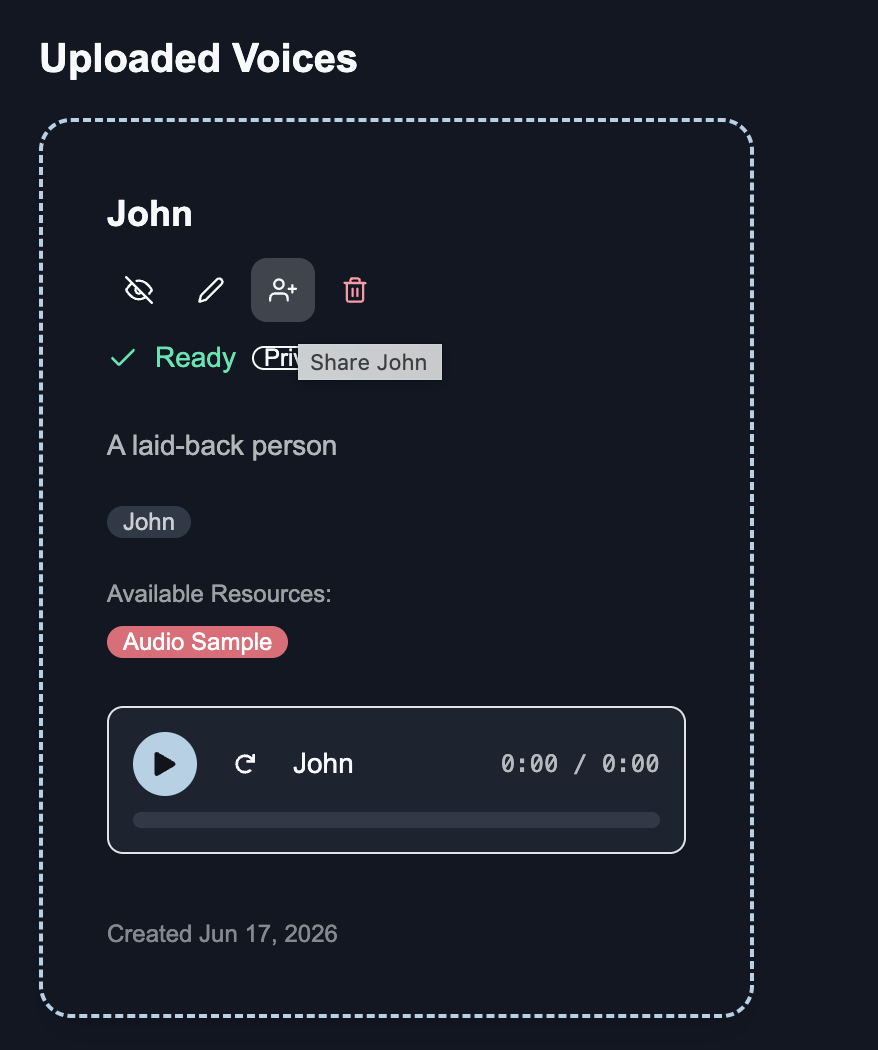
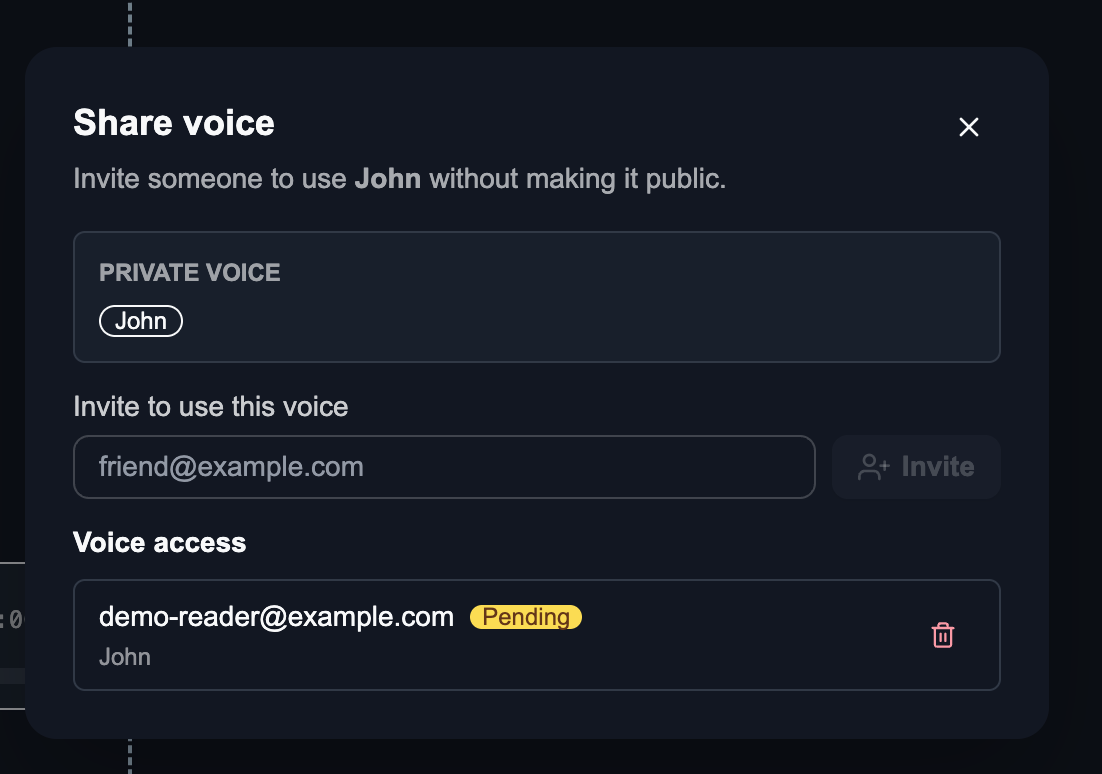
The share action opens an access panel for that voice. Enter the recipient's LyricWinter email address, send the invite, and the pending share appears under Voice access.
Share From Generate
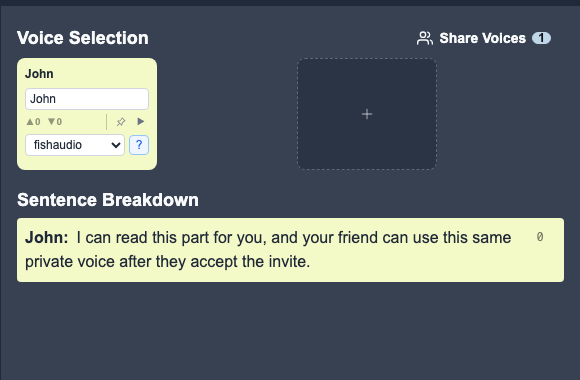
You can also share while casting a story. After LyricWinter detects characters, the Voice Selection header shows Share voices when the current story uses completed private voices you own.[1]
The number on the button is the count of selected private voices that can be shared. This is useful when you have already assigned voices to characters and want a friend to use the same cast.
Accept Or Decline Invites
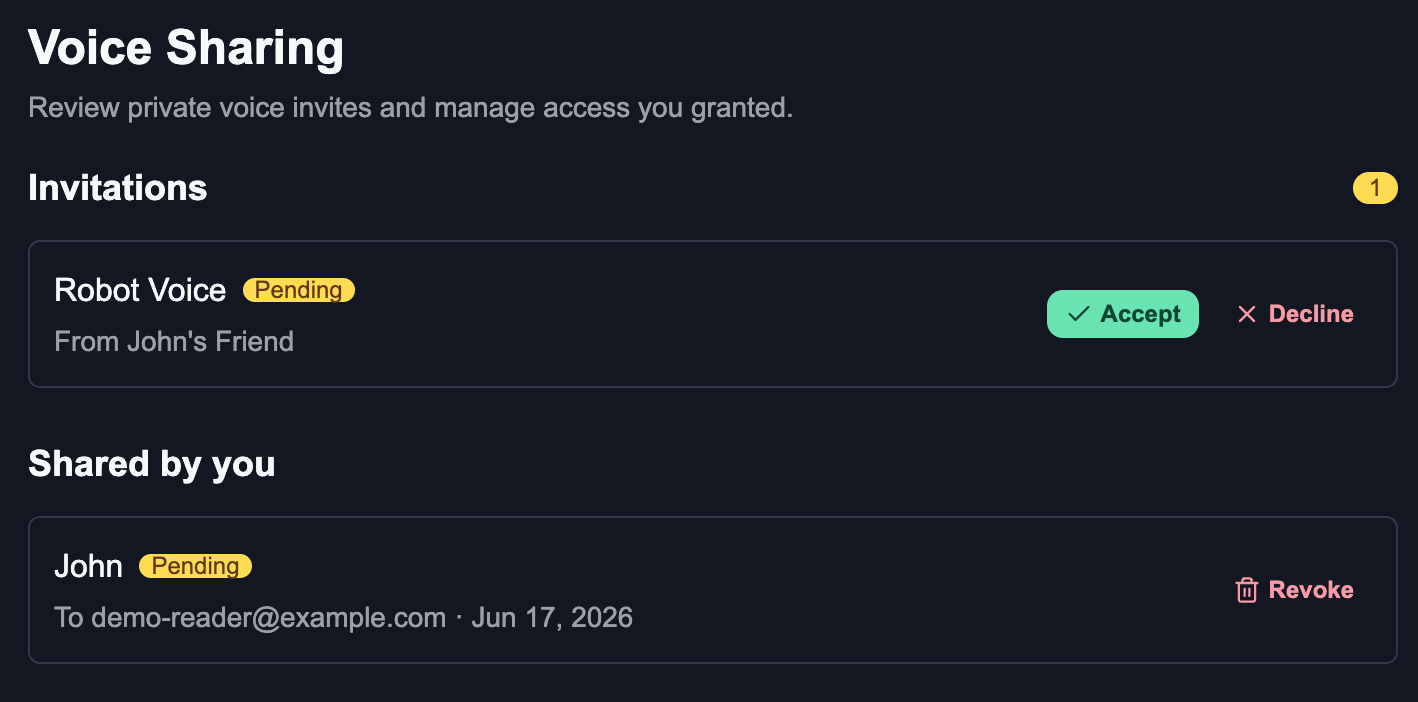
Invites start as pending. The recipient needs to sign in with the invited email address, open Dashboard > My Voices, and accept the invite before the private voice becomes usable.
Accepted voices appear in a separate Shared with you area. If the recipient declines, the voice is not usable. A declined invite can still be re-sent by the owner later.
Manage Access
The Voice Sharing section on Dashboard > My Voices is the management view for both sides of the relationship: invites you received and shares you granted.
Owners can revoke access for a recipient at any time. Recipients can remove an accepted shared voice by declining it from the same management view.
Where Shared Voices Appear
After acceptance, shared private voices are available anywhere LyricWinter searches selectable voices: the Generate voice picker, loaded story assignments, and clip regeneration paths.
They are segmented from your own uploads, your AI voices, and the public Voice Library. Search keeps them in the Shared with You section so a private invite is visible without making it look like a public catalog result.[4]
Private Voice Sharing FAQ
Can I share a voice without making it public?
Yes. Private sharing gives specific LyricWinter accounts access to a completed private voice. The voice does not move into the public voice library.
When does the Share voices button appear on Generate?
It appears after a story has detected characters and at least one selected character voice is a completed private voice owned by you.
Can I share from Dashboard?
Yes. On Dashboard > My Voices, completed private voices you own have a share action on the voice card. That opens the same access panel used by Generate.
Can someone use a shared voice before accepting?
No. Invites start as pending. The recipient needs to accept the invite before the voice appears in their Generate voice picker and shared-voice search results.